Quick and Easy Guide to Modding Risk of Rain 2
Modding Risk of Rain 2 (RoR2) is one of the easiest ways to lose hundreds of hours of your life. Starstorm 2 alone (one of my favorite mods) has enough content to qualify as a DLC.
Regardless of what you want to download, here’s a quick, straightforward guide on downloading, installing, and managing mods using R2Modman. Two minutes, I swear.
You can look at the video below if you have trouble understanding any of the steps (or prefer it to be visual).
Step 1: Downloading and Installing R2Modman
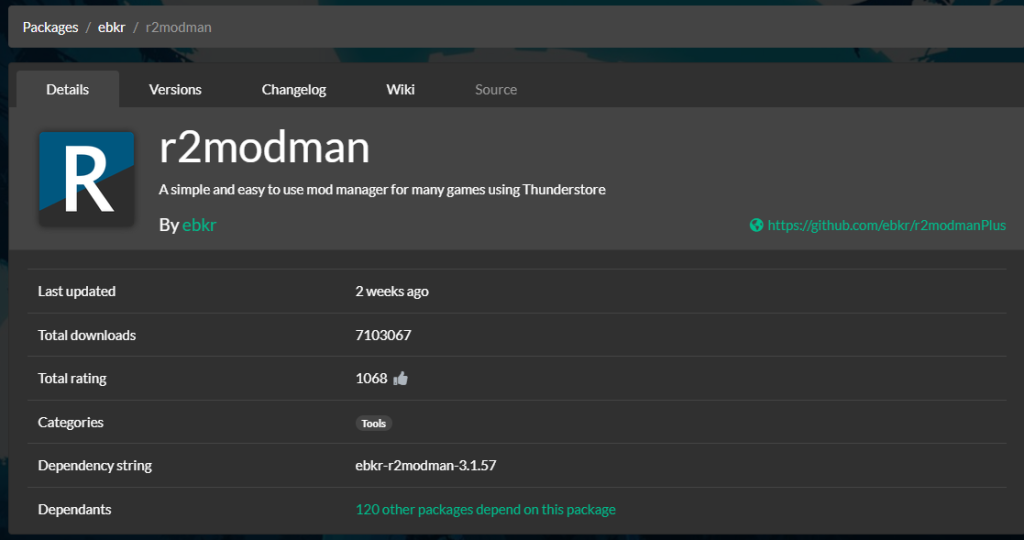
- Visit the Thunderstore website and search for “R2Modman.” – or, use this link
- Click on “Manual Download” to obtain a zip file.
- Extract the file and run
R2ModmanSetup.exe. - Follow the installation prompts. Once installed, R2Modman will auto-update itself.
Step 2: Setting Up Your Game
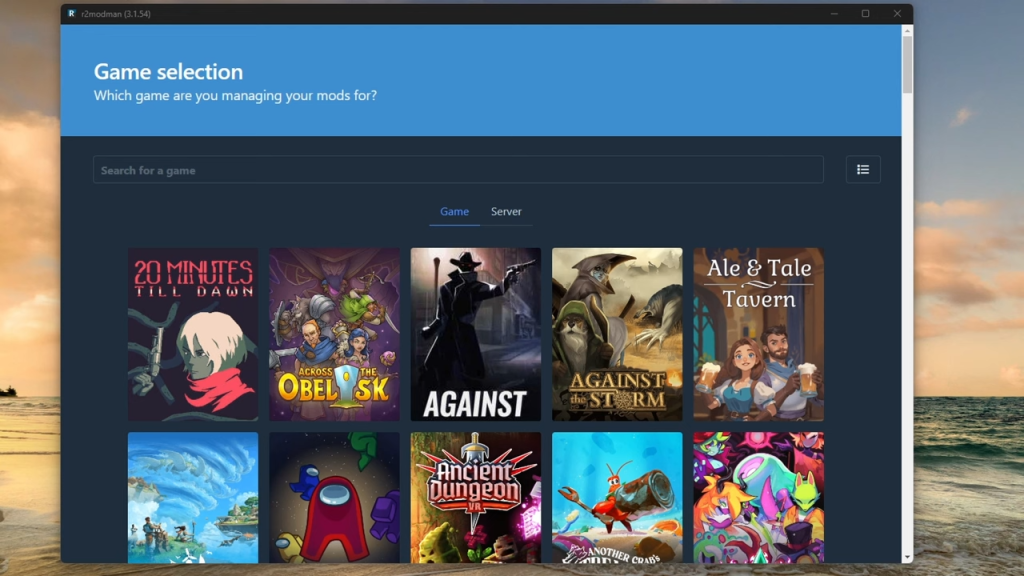
- Open R2Modman and select your game (e.g., Risk of Rain 2).
- You can set Risk of Rain 2 as your default game if that’s your primary modding interest.
- Select your gaming platform (e.g., Steam).
- Create a new profile (name it creatively!) to manage your mods separately.
Step 3: Installing Mods
- Navigate to the “Online” tab in R2Modman.
- Browse through available mods, or use search and filter options to find specific ones.
- Click on desired mods and press “Download.” Dependencies are automatically handled by R2Modman.
- Use the “Start Modded” button at the top of the R2Modman interface to launch your game with mods.
Step 4: Updating and Managing Mods
- R2Modman notifies you if mods need updating; simply follow prompts at the top.
- You can toggle mods on or off by clicking the blue bar next to each mod.
Step 5: Configuring Mods
- Many mods have configurable settings. Access these by using the built-in “Config Editor.”
- Adjust settings to your liking, like UI changes, gameplay tweaks, and more.
- Some mods can also be configured directly within RoR2’s in-game settings after launching the game once with mods enabled.
Step 6: Profiles and Sharing Mods
- Create multiple profiles for different mod setups—ideal for separating gameplay styles like casual play or speedrunning.
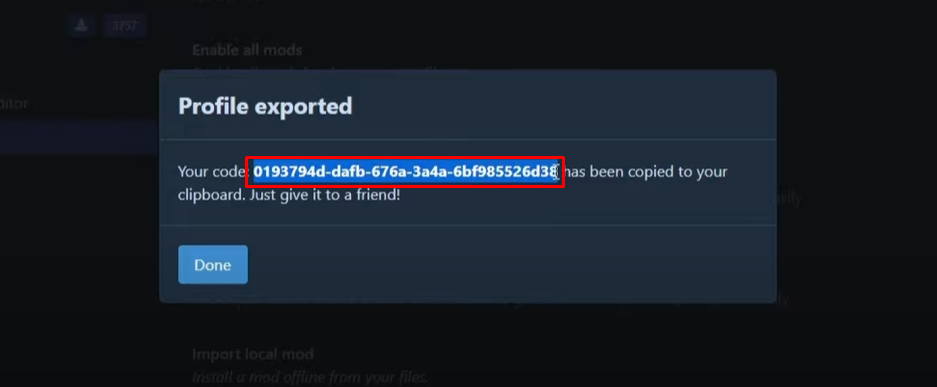
- Share your mods easily: go to profile settings and select “Export Profile as a Code.” Send this code to friends.
- Your friends can then import your exact mod setup by clicking “Import” in R2Modman and pasting your code. This makes multiplayer modded gaming effortless.
Troubleshooting Tips
Most issues you will face are going to be from new updates. After patches, expect most mods to not work. Here are some tips for troubleshooting:
- If your game freezes or loads slowly, check your mod compatibility or update status.
- Disable mods one at a time to determine which one is causing the issues
- Use the Risk of Rain 2 Modding Discord for additional support or common troubleshooting.
Recommended Mod
You can check out my mod list if you want a list of mods I use/recommend.